Keep one useful moment
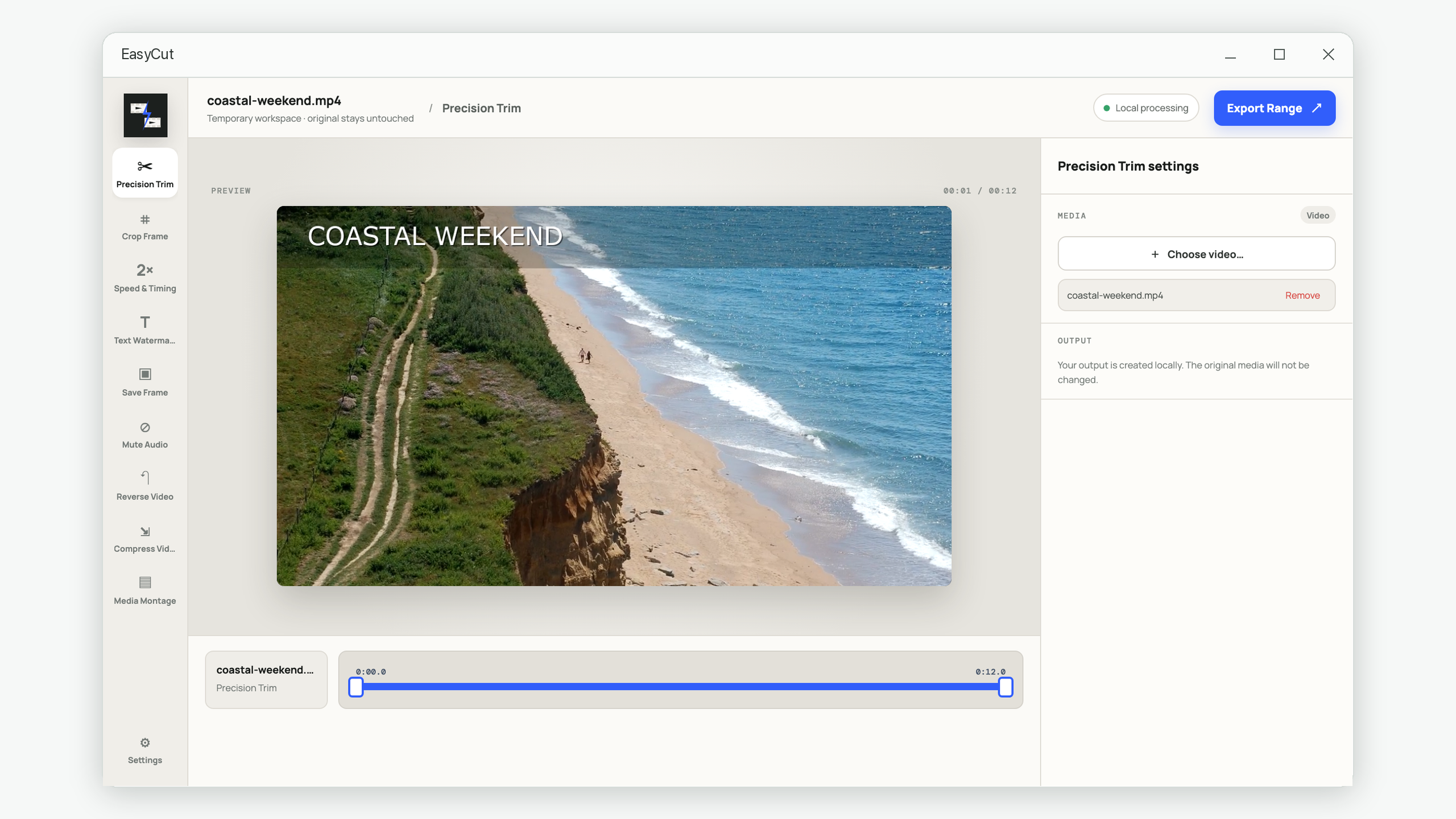
Set an exact start and end time, then export only that range with Precision Trim.
Trim the part you need, crop the frame, shrink a large file, or turn photos and clips into one video—all without sending your media to a website.
You should not need a timeline with forty controls just to remove an awkward ending or make a file fit an upload limit.
Set an exact start and end time, then export only that range with Precision Trim.
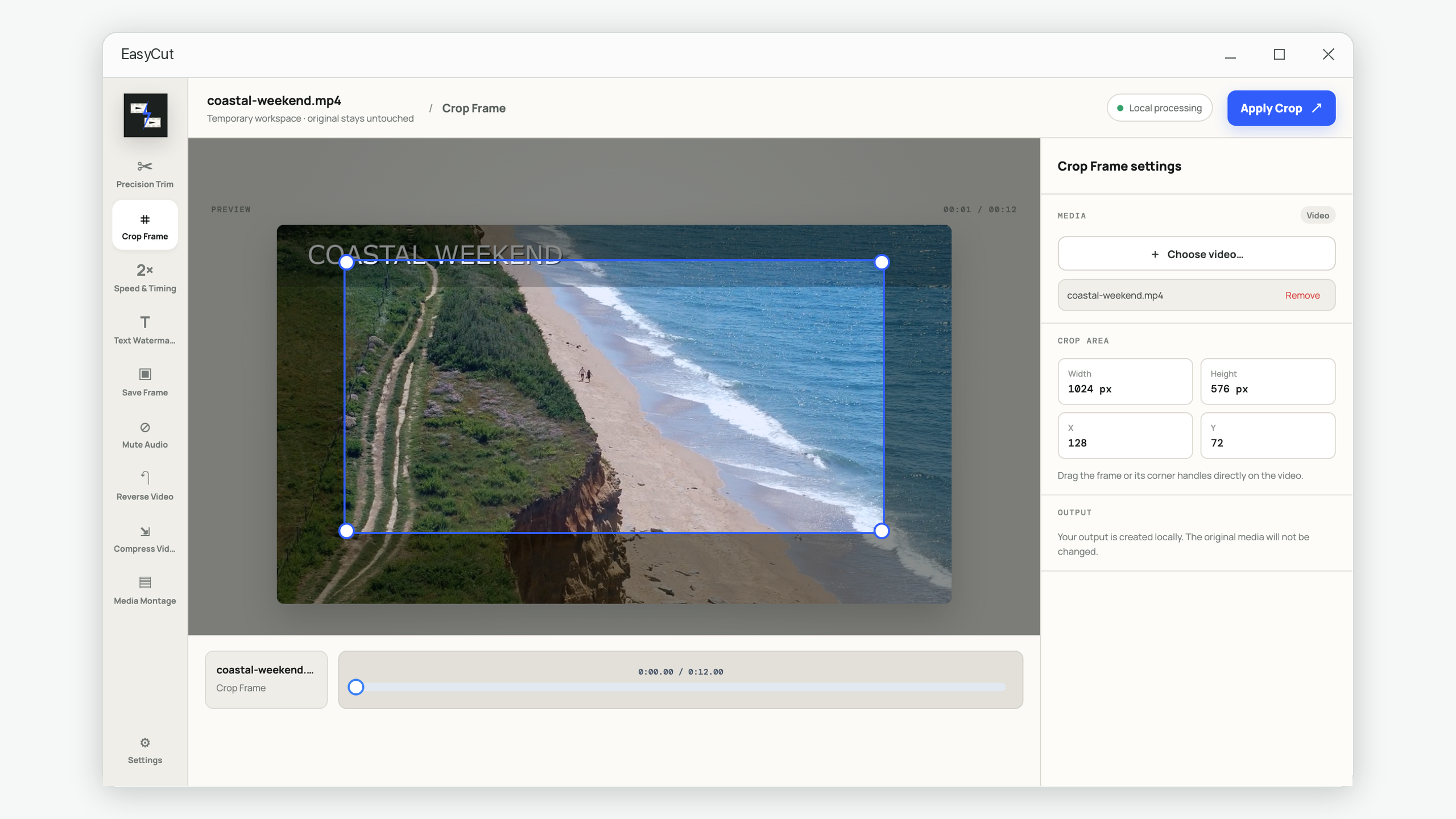
Drag a crop directly over the preview instead of guessing pixel coordinates.
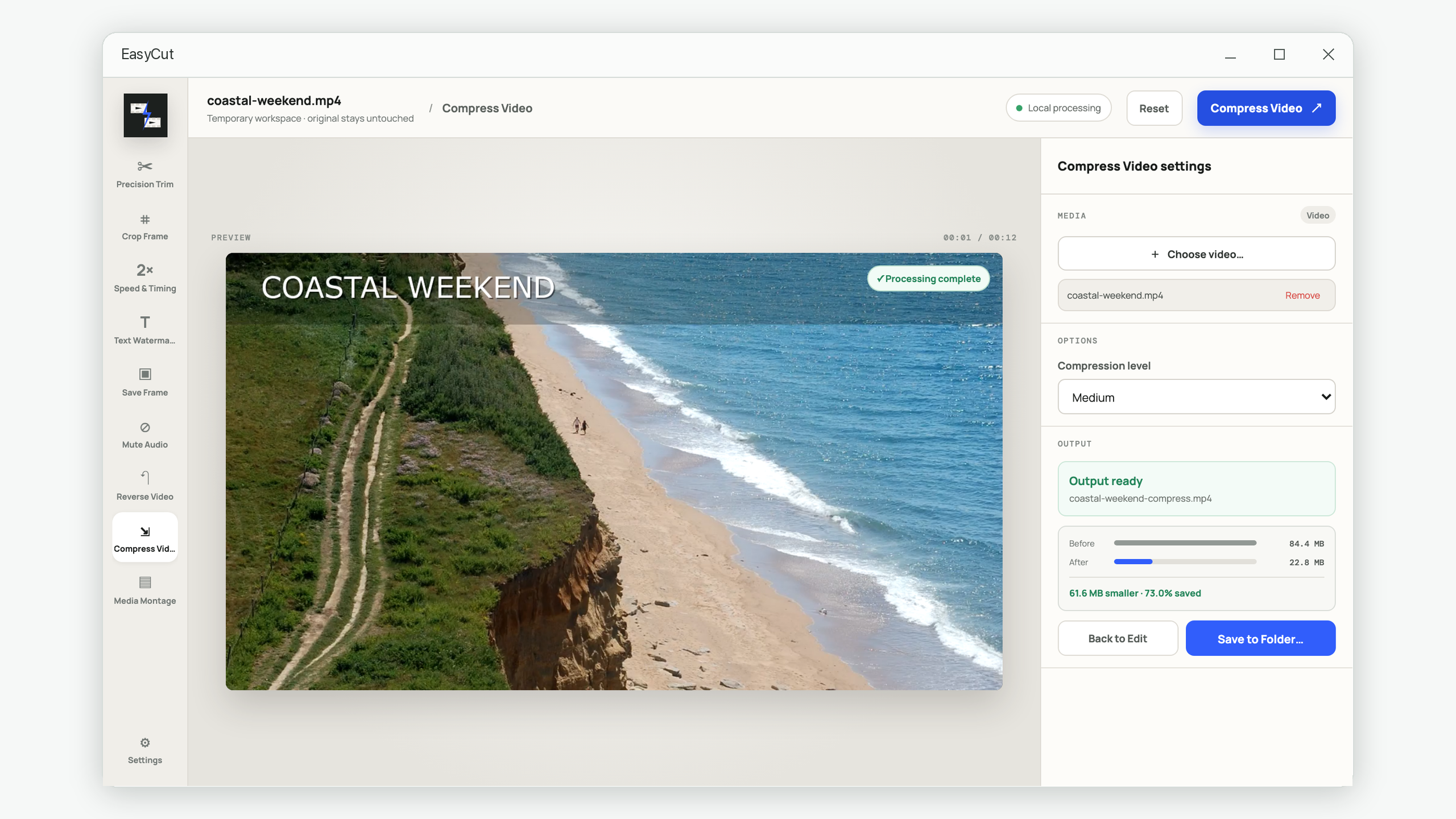
Compress locally and compare the original and output size before saving.
Change the whole clip or one selected range while preserving audio pitch.
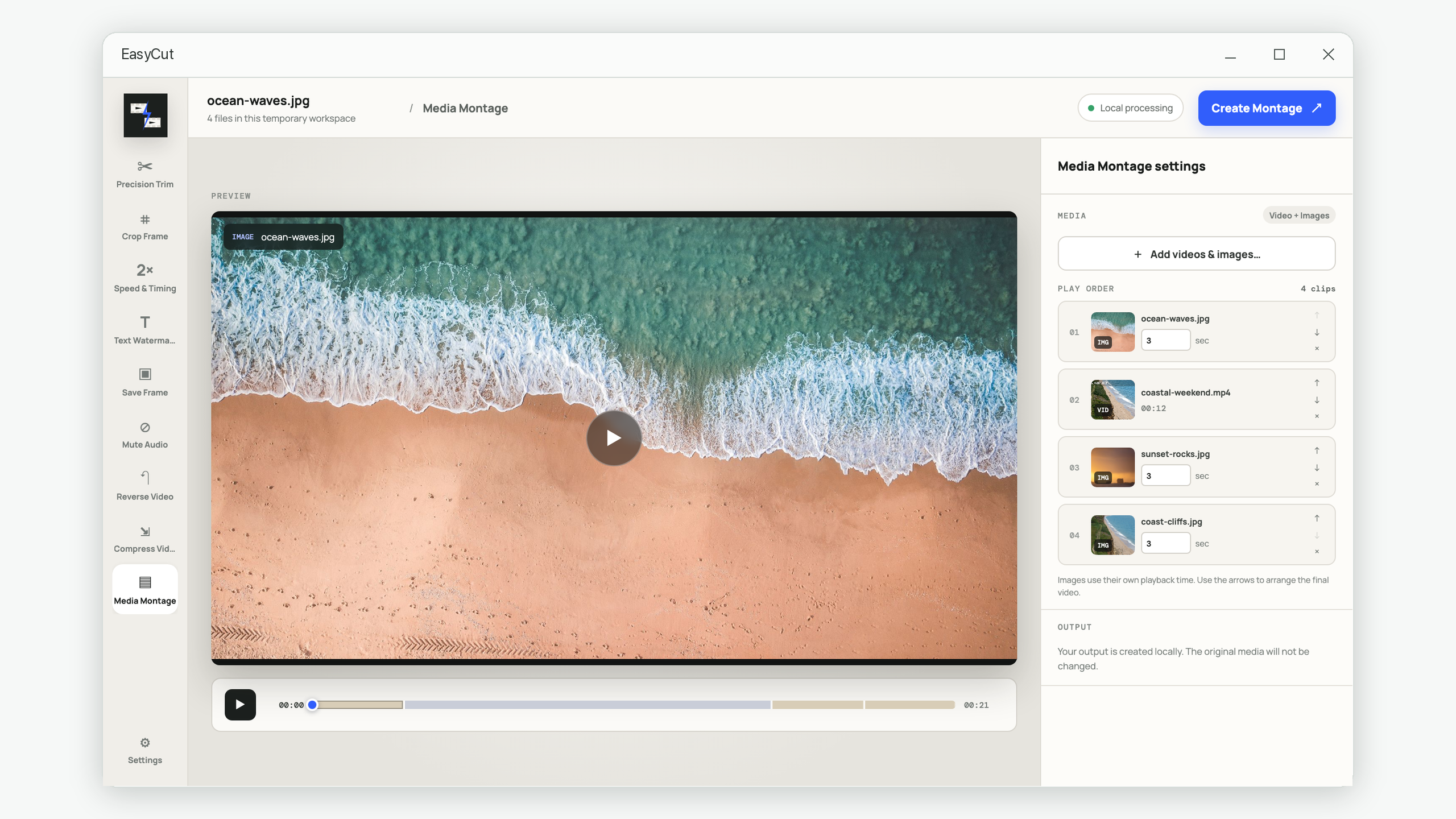
Arrange videos and timed images in any order, then preview the sequence continuously.
Handle common finishing tasks without moving the project into a full editing suite.
Each tool keeps the preview in the center, the edit control close to the media, and the export action in one predictable place.
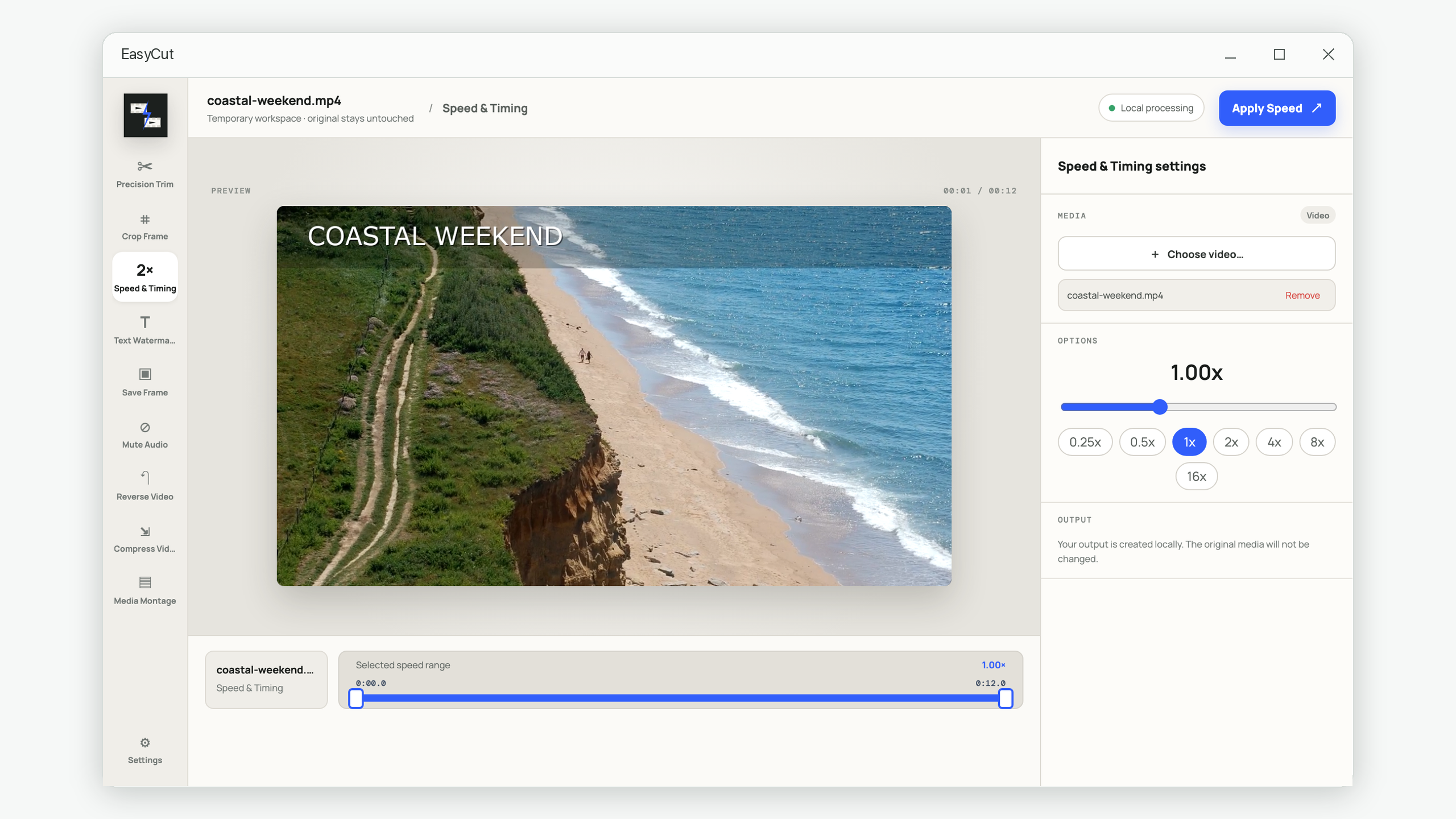
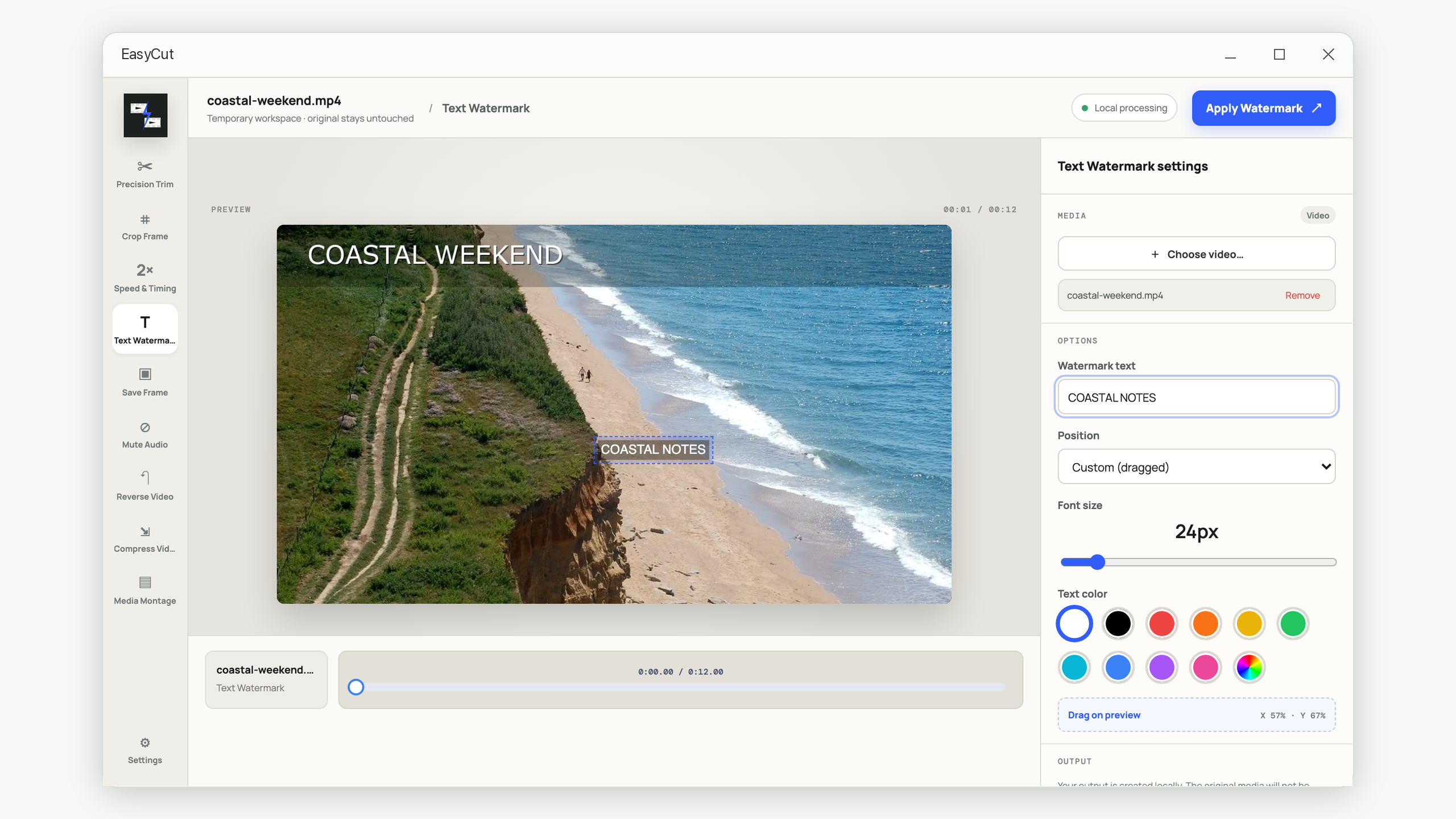
EasyCut keeps controls close to the result they affect, so the workflow reads like the job you are trying to finish.
Keep an exact time range and export it as a separate MP4.
Drag the visible crop area over the preview and check the composition before export.
Change full-video or selected-range speed from 0.2× to 20× with pitch-preserved audio.
Set text, size, color, and position by dragging directly on the frame.
Choose a practical compression level and see the space saved after processing.
Combine timed photos and video clips in a custom order with continuous preview.
These guides explain the decisions behind a good edit, including methods you can use with any editor.
Choose clean cut points, avoid accidental recompression, and check the result before deleting anything.
Read the guide →Understand resolution, bitrate, codec, and duration so you reduce the right thing first.
Read the guide →Plan the destination ratio, protect the subject, and avoid stretching or cutting off important details.
Read the guide →Build a sequence that feels intentional by planning order, image duration, pacing, and sound.
Read the guide →EasyCut listens only on your computer, does not require an account, and does not upload your media to a remote processing service. The original file remains unchanged; you choose where the finished copy is saved.
Get EasyCut for WindowsStill need help? Email support@iamdev.me.
No. Media processing happens locally on your Windows device. EasyCut does not operate a cloud media library.
No. EasyCut creates a separate processed output and leaves the selected source file untouched.
Yes. Media Montage accepts both, lets you reorder them, and gives every image its own display duration.
Yes. Choose a start and end range, then apply the speed change only to that section while the rest stays at normal speed.
Yes. Mute Audio removes the audio track and exports a silent copy of the video.
Video tools create MP4 files, while Save Frame exports a JPG image. Source compatibility depends on the media format and codecs available to the bundled processing engine.